

If you want to know how to use Intercom, the order you do things in matters more than any single setting. This guide takes you from a blank workspace to a working support setup: installing the Messenger, organising your Inbox, connecting email, publishing help articles, building workflows, and launching the Fin AI Agent safely.
It also covers what Intercom actually costs in 2026, where the platform falls short, and which alternatives are worth a look first. No developer needed for the basic setup.
What Is Intercom and How Do You Use It?
Intercom is a customer service platform for managing conversations, automating support, and running AI agents. To use Intercom, install the Messenger on your website, connect your support email, organise your shared Inbox, publish Help Center articles, build a few workflows, then test the Fin AI Agent before launching it to customers.
Key Takeaways
- Setup order matters. Organize your support content before you switch on any AI, because Fin answers only from what you give it.
- The company rebranded from Intercom to Fin in May 2026, and Salesforce agreed to acquire it in June 2026. Most people still search and speak of it as Intercom.
- Pricing has two layers: paid seats from $29 per seat per month, plus $0.99 for every outcome Fin resolves.
- Test everything on mobile, after hours, and in every language you support before launch day.
- Measure reopened conversations and satisfaction next to automation volume. Deflection alone is a misleading number.

What Is Intercom? (And Why It Is Not a Door Intercom)

Intercom is an AI powered customer service platform. It brings customer messaging, help desk tools, and AI support agents into one system, so teams can answer questions, track issues, and cut repetitive work. Deciding if Intercom is right for you? See how intercom and zendesk compare. Unlike business-focused support platforms, Luzia AI’s conversational assistant for WhatsApp is designed for personal questions, translations and everyday messaging rather than operating a customer support desk.
The platform combines nine main parts:
- The customer Messenger
- A shared support Inbox
- Ticket management
- A Help Center
- Workflows and automation
- The Fin AI Agent
- Copilot for human agents
- Customer data
- Reporting
One point confuses. Intercom is business software for SaaS companies, online services, ecommerce brands, and support teams. It is not a household door intercom.
Brand note for 2026: the company renamed itself Fin in May 2026, after its AI agent product. In June 2026, Salesforce signed a definitive agreement to acquire Fin for around $3.6 billion, with closing expected in Salesforce’s fiscal fourth quarter of 2027 (Salesforce press release). Product names, logins, and prices are unchanged for now. Most customers, docs, and search traffic still use the Intercom name, so this guide does too.
Intercom was born out of a desire to make internet business personal.
How to Use Intercom: Step-by-Step Setup

Work through these nine steps in order. Skipping ahead to the AI is the single most common setup mistake, and it produces weak answers.
Step 1. Create Your Intercom Workspace
Start the 14 day trial and enter your company and website details. Intercom asks what you want to use it for, so pick the support use case rather than a marketing one.
- Set the workspace name, default language, and time zone before anything else.
- Invite your teammates and assign permissions that match their real job.
- Give admin rights to two people only, not the whole team.
Every teammate who needs full access requires a paid full seat. Advanced and Expert plans include limited Lite seats for internal collaborators, but those cannot message customers.
Step 2. Install Intercom Messenger
The Messenger is the chat window your customers see. Install it in two places: for anonymous website visitors, and for logged in users inside your product. Intercom recommends both in its official getting started documentation.
Four Ways to Install the Intercom Messenger:
- Paste Intercom’s JavaScript snippet into your site template.
- Use a ready integration or a tag manager container.
- Ask a developer to install it, which suits custom apps.
- Add the mobile SDK for an iOS or Android app.
Messenger Installation Checklist:
- Confirm you used the correct workspace ID.
- Test on desktop and on a real phone.
- Verify that logged in customer data appears in the conversation.
- Check your cookie consent requirements.
- Never publish an untested installation.
Step 3. Customize the Messenger
Now make the Messenger match your brand and set honest expectations. Configure your colors and logo, the launcher position, the welcome message, and the home screen. Then set your office hours and expected response time.
Also decide whether customers can reach your Help Center, start new conversations, and open tickets from the Messenger, and which channels you offer.
Messenger Settings for Small Support Teams
- Show real office hours rather than a promise of instant replies.
- Turn on Help Center search inside the Messenger.
- Keep the home screen to three items or fewer.
- Allow customers to see their past conversations.
- Hide any channel you cannot staff.
Step 4. Connect Email and Other Support Channels
Most support volume still arrives by email. Connect your shared support address, then verify your sending domain so replies do not land in spam.
- Forward incoming support email into Intercom.
- Set the reply address customers will see.
- Connect supported social and messaging channels you actually monitor.
- Send a test message inbound and outbound on every channel.
Channel availability and usage charges differ. WhatsApp, SMS, and phone are metered separately from your seat price.
Step 5. Organize the Shared Inbox
A shared Inbox without ownership becomes a queue nobody reads. Structure it now, while volume is low.
- Create support teams that reflect how you really split work.
- Set assignment rules so no conversation sits unowned.
- Build Inbox views for each team and for urgent cases.
- Add a small set of tags and customer attributes.
- Use internal notes for context instead of separate chat threads.
- Create macros for your ten most repeated replies.
- Define service level expectations your team can meet.
- Convert long running conversations into tickets.
Step 6. Create Tickets and Support Processes
Conversations and tickets do different jobs. Getting this line right prevents a messy Inbox later.
| Use a conversation when… | Use a ticket when… |
|---|---|
| A question can be answered immediately | Work must continue after the conversation ends |
| One agent can resolve the request | Multiple teams need to collaborate |
| No formal status tracking is required | Statuses, fields, or deadlines are needed |
| The interaction is informal | The issue requires a structured process |
Create ticket types for your genuine back office cases, such as refunds, bugs, and account changes. Give each one the fields your team needs and nothing more.
Step 7. Build Your Help Center
This step decides how good your AI will be, so do not rush it. Create collections, then write articles that follow customer tasks rather than your internal feature names.
- Title articles in the words customers use, not your product jargon.
- Keep answers current and delete anything outdated.
- Link related articles so readers can finish a whole task.
- Review your failed searches to find real content gaps.
Clear support content improves Fin’s answers directly. Fin builds replies from your Help Center articles, internal docs, PDFs, and web pages, so thin documentation produces a thin AI agent.
Step 8. Create Workflows and Automation
Workflows handle the repetitive routing your team should not do by hand. Start with two or three, not twenty.
- Route conversations by topic or customer type.
- Collect contact and account details up front.
- Apply tags and set priorities automatically.
- Assign conversations to the right team.
- Trigger follow ups on quiet conversations.
- Escalate high value or urgent cases immediately.
- Hand conversations from Fin to a human agent cleanly.
Step 9. Test the Customer Experience
Test as a customer, not as an admin. Use this pre launch checklist:
- Repeat the review in every language you support.
- Submit test questions from a laptop and a phone.
- Test as both a signed in user and an anonymous visitor.
- Confirm email replies arrive and are not marked as spam.
- Verify that workflow routing sends cases to the right team.
- Check after hours behavior and the away message.
- Review Fin’s answers to your twenty most common questions.
- Test the handoff to a human, including during busy periods.
- Confirm reports recorded every test interaction.
Intercom Features: What You Actually Get on Each Plan

Intercom combines communication, AI, automation, and support management in a single platform. That bundling is its main selling point, and also the reason the bill grows.
Fin AI Agent and Copilot
- Automated customer answers built from your own content
- Knowledge base and document integration
- Conversation summaries for agents
- Suggested replies inside the Inbox
- Human handoffs when confidence is low
- Multilingual support in more than 45 languages (Intercom documentation)
Customer Data and Segmentation
Beyond the setup basics, Intercom stores company profiles, custom attributes, and behavioral data. You can target Help Center content and Fin answers by customer plan, location, or brand, so different segments see different answers.
Reporting and Analytics
- Conversation volume and channel mix
- Response and resolution times
- Team workload distribution
- Customer satisfaction scores
- Fin AI performance and answer quality
| Feature | Main benefit |
|---|---|
| Fin AI Agent | Automates common support requests |
| Shared Inbox | Centralizes customer conversations |
| Workflows | Reduces repetitive manual work |
| Tickets | Tracks complex customer issues |
| Reporting | Measures support and AI performance |
How to Measure Intercom’s Customer Service Impact
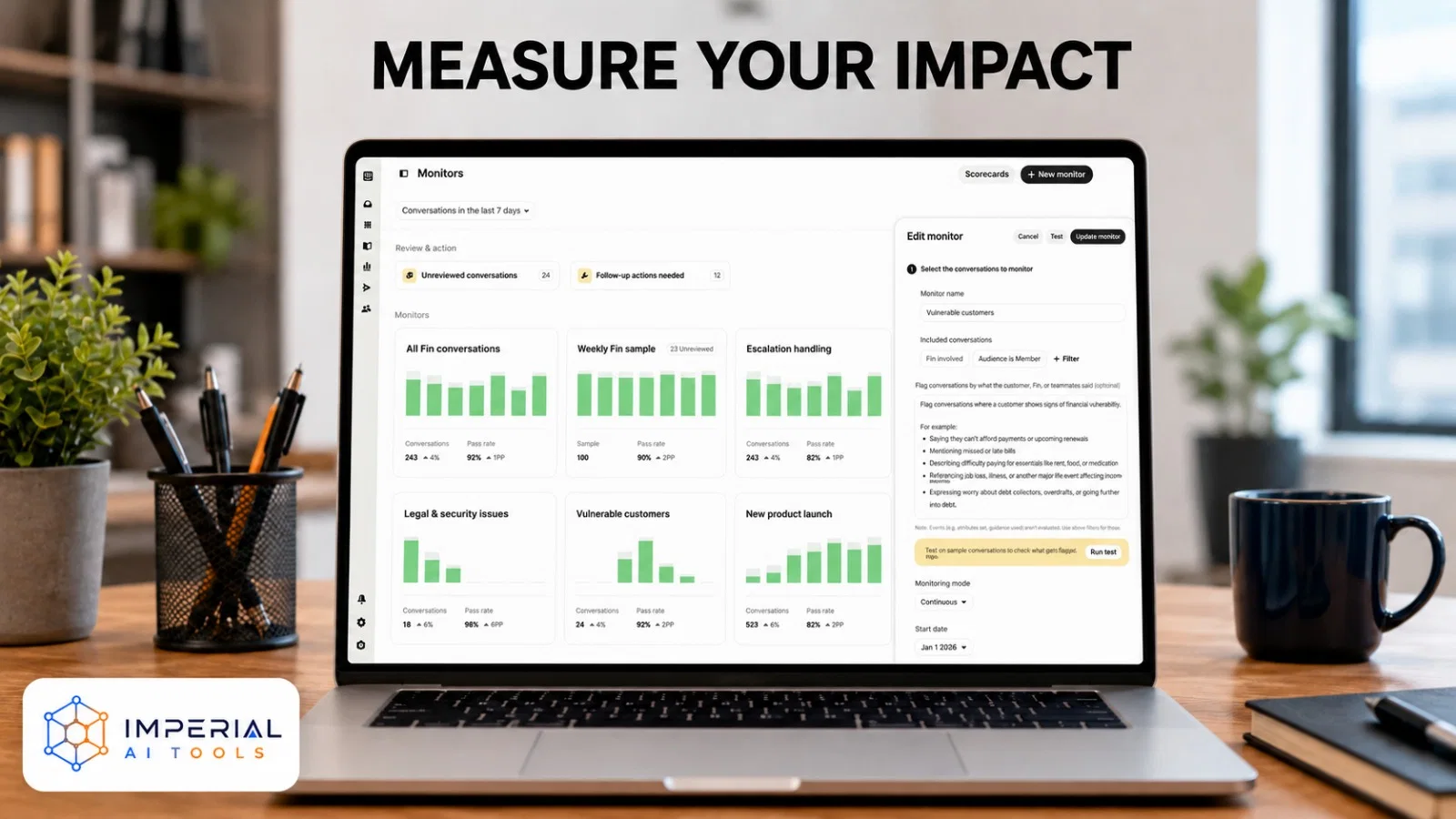
Record your current numbers before launch. Without a baseline you cannot prove the platform helped, and you cannot spot the moment automation starts hurting quality.
| Metric | What it reveals | Desired movement |
|---|---|---|
| First response time | How quickly customers receive help | Down |
| Median resolution time | Overall support efficiency | Down |
| AI resolution rate | Requests resolved by Fin | Up, without harming quality |
| Human handoff rate | Cases that still need an agent | Context dependent |
| Reopened conversations | Whether answers fully solved issues | Down |
| CSAT or CX Score | Customer perceived quality | Up |
| Conversations per agent | Team productivity | Up sustainably |
| Cost per resolution | Financial efficiency | Down |
Read answer quality alongside automation volume, never on its own. A high deflection rate means nothing if customers reopen cases or rate the experience lower afterwards. Intercom’s own published case studies show real customer resolution rates in the 42 to 50 percent range, so plan your forecast around that band rather than a marketing headline.
How Much Does Intercom Cost in 2026?
Intercom pricing has two layers, and only one of them is the number people quote. You pay for seats for your human agents, and separately for what the AI resolves and which channels you use.
Seat Pricing Explained
Paid full seats start at $29 per seat per month. A full seat is required for anyone who needs to message customers directly. The Advanced and Expert plans include a number of Lite seats for internal colleagues who need to read and comment but never reply to a customer useful for engineers and product managers who get pulled into escalations. Lite seats cost nothing extra on those plans, so audit who genuinely needs a full seat before you buy.
What Fin Costs Per Resolution
Fin is billed at $0.99 for every conversation it resolves. The charge lands only on a resolution, not on a handoff to a human, so a conversation Fin fails and passes on does not bill. There is no volume discount, which means the cost scales directly with your support load. A team handling 2,000 conversations a month with a 45% resolution rate is looking at roughly $891 in Fin charges on top of seats.
The Channels That Bill Separately
WhatsApp, SMS, and phone support are metered outside your seat price. If you plan to use them, price them separately before you commit they are the most common source of a bill that comes in higher than the quote.
Before signing anything, build a simple monthly model: seats, plus expected Fin resolutions, plus metered channels. Then agree an internal ceiling. The outcome-based model charges you most in the months your business is busiest.
Benefits and Limitations of Using Intercom
| Benefits | Limitations |
|---|---|
| Messaging, tickets, automation, and AI in one platform | Per seat and usage charges can become expensive |
| Strong website and in app messaging | Initial configuration requires real planning |
| Fin can answer repetitive questions at scale | AI quality depends heavily on your support content |
| Flexible workflows and routing | Advanced features sit on higher plans |
| Detailed customer and conversation context | Complex reports take time to configure |
| Supports human and AI collaboration | Poor workflows create incorrect routing |
Intercom Best Practices and Common Mistakes
Recommended Best Practices
- Begin with a small number of high impact workflows.
- Use customer language in your support articles.
- Assign clear ownership to every inbox and view.
- Keep human escalation visible and easy to reach.
- Review failed searches and unanswered questions monthly.
- Test automation with real customer scenarios, not invented ones.
- Audit teammate permissions on a schedule.
- Compare AI outcomes with satisfaction and reopen rates.
Pro tip: before you enable Fin, paste your last 50 real customer questions into a test conversation. If Fin cannot answer half of them well, your Help Center is the problem, not the AI. Fix the content first and avoid paying for weak outcomes.
Common Mistakes to Avoid
- Automating before organizing your support content.
- Launching Fin to every customer on day one.
- Creating too many overlapping tags.
- Leaving outdated articles published.
- Measuring only the number of automated responses.
- Hiding the human support option.
- Ignoring mobile Messenger testing.
- Failing to forecast outcome based charges.
Common mistake: budgeting from the seat price alone. Fin charges per resolved outcome with no volume discount, so your bill rises when customers get busier. Set a monthly outcome expectation, watch it weekly for one quarter, and agree an internal limit before the invoice teaches you one.
Intercom Alternatives
Intercom is powerful, but its pricing and AI model will not suit every support team. Compare these Intercom alternatives before choosing your customer service platform.
Tools Similar to Intercom
- HubSpot AI, for CRM connected customer service that ties support to sales and marketing
- HubSpot alternatives, for conventional help desk and CRM options at a lower seat price
- Salesforce vs HubSpot, for teams weighing two enterprise platforms with support built in
- AI chat tools, for smaller businesses needing chat and light automation
- automation agents, for knowledge based AI support without a full help desk
The right choice depends on three things: how many agents you need to seat, whether your support volume makes outcome-based AI pricing work in your favour, and how much of your knowledge base already exists. Define your company size, channel needs, budget, and automation requirements first, then browse our AI chat tools category or run a side by side comparison.
The Imperial AI Tools Take
If you want the fastest useful result, ignore the AI for your first week. Learning how to use Intercom well is mostly content work and process work, not configuration. Install the Messenger, connect email, tidy your twenty most requested answers into clear articles, then turn Fin on for one customer segment and read every transcript. That path gets a small team live in days and gives Fin something real to answer from. Our honest caveat is the cost model. Outcome based pricing rewards Intercom when your volume grows, which is exactly when your budget is under pressure. Model it before you sign, not after.
Should You Use Intercom? Final Verdict
Intercom is worth considering for businesses that want customer messaging, structured support, automation, and AI assistance in a unified platform. Its Messenger and Inbox help teams centralize conversations, while Workflows, the Fin AI Agent, and Copilot reduce repetitive work and improve response speed.
Successful implementation depends on more than switching on the AI. Organize your support content, design clear escalation paths, test your workflows, and measure satisfaction alongside automation rates. Start with the trial, deploy one workflow, and calculate the combined cost of seats, Fin outcomes, and paid channels before committing. One extra factor applies in 2026: the pending Salesforce acquisition means longer term packaging could change, so read any multi year contract with that in mind.
Intercom Frequently Asked Questions
Not permanently. Intercom offers a 14 day trial, and Fin has its own trial period with no card required, which is enough to measure a real resolution rate. There is no forever free plan. After the trial you need at least one paid seat, plus $0.99 for each outcome Fin resolves.
Mostly no. Inbox, ticketing, workflow, Help Center, and Fin settings are all configured through the interface. Installing the Messenger manually, adding the mobile SDK, or connecting custom internal systems may need developer help. Many teams complete a full basic setup without writing any code at all.
Only partly. Intercom stores customer and company profiles, conversation history, and behavioral attributes, which covers support context well. It is built as a customer service platform, not a sales pipeline tool. Most businesses still run a dedicated sales CRM alongside it and connect the two.
Yes. Fin handles support in more than 45 to 64 languages, and real time translation lets it answer even when your content exists in only one language. Test your own terminology, article quality, and escalation rules in every target language, because answer quality varies with the content behind it.
It depends on your support volume. With one or two agents and low ticket volume, the combined cost of seats at $29 per month plus $0.99 per Fin resolution is hard to justify against simpler live chat tools. Intercom earns its price when repetitive questions make up a large share of your volume and you have the Help Center content for Fin to answer from.
Fin is the AI agent inside Intercom, and it is also the company’s new name. The business renamed itself Fin in May 2026 after its AI product. Product names, logins, and prices are unchanged, and most customers, documentation, and search traffic still use the Intercom name.