

This ChatGPT guide shows you how to use ChatGPT in 2026, step by step, in plain English. You will learn how to sign up, set up your account, choose a thinking level, write prompts that work, upload files, use voice and study tools, and keep your data safe. It covers the current GPT-6 version of ChatGPT, including its new Intelligent UI.
Quick Answer
ChatGPT is OpenAI’s AI assistant. It writes, codes, explains topics, reads files and answers questions in plain language. Since October 7, 2026, its chats run on GPT-6, and answers can now include side-by-side comparisons, diagrams and small interactive tools. You can start free; paid plans raise limits and add stronger reasoning. ChatGPT can still be wrong, so check anything important.
What Is ChatGPT? A Plain-English Definition

ChatGPT is an AI assistant built by OpenAI. You type a request in plain language, and it replies with text, code, images or analysis. It runs on a large language model (LLM) trained on huge amounts of text, so it writes new answers from the patterns it learned instead of copying old ones. It is also multimodal, which means it works with text, images, voice and files.
Try this: ask for a short birthday poem in the style of your favorite rapper. That exact poem does not exist anywhere, so ChatGPT builds a fresh one. That is why people use it for writing, studying, planning and everyday work.
For example, ask it to write a short birthday poem in the style of a rapper you like. That exact poem does not exist anywhere; ChatGPT builds a fresh one from the patterns it learned. That is why this AI chatbot is so useful for writing, studying, planning, and everyday work. ChatGPT is also the top free grok alternative in our 2026 tests
Who owns ChatGPT?
ChatGPT is owned and built by OpenAI, an AI research company based in San Francisco, led by CEO Sam Altman. OpenAI created the GPT models that power ChatGPT and keeps updating them with faster, smarter versions over time.
“AI is an enabling technology, like electricity. ChatGPT is like the first telephone that works.”
How to Sign Up and Use ChatGPT (Web, App and Desktop)

Use ChatGPT in Your Browser
The fastest way to start is in a web browser. Go to chatgpt.com (also reachable at chat.com), sign up with an email, Google, Apple, or Microsoft account, then click “New chat” and type your question. You do not need to install anything to try it. The web version works on any computer with a modern browser, and no download is needed. It is also the safest place to use Intelligent UI, because older macOS and Windows desktop apps may not show it. If you use a shared computer, log out when you finish.
Use the ChatGPT App
There is also a ChatGPT app for iPhone, Android, Mac, and Windows. It is great for quick questions on the go, talking by voice, and snapping a photo to ask about it. Sign in with the same account and your chats stay in sync across devices.
How to Create a ChatGPT Account (Step by Step)
Creating a free account takes about a minute:
1. Go to chatgpt.com in any web browser.
2. Click “Sign up.”
3. Choose email, or sign in with Google, Apple, or Microsoft.
4. If you use email, verify it with the code they send you.
5. Add your name and you’re in, click “New chat” and start typing.
You can even try ChatGPT without an account, but signing up saves your chat history and unlocks more features. Want a research-versus-productivity view? Our perplexity vs gemini comparison covers both angles.
Tip: use an email you will keep for years, or a Google or Apple account. Your history and memory are tied to this login, and changing accounts later means starting from zero. You can review where you are signed in under Settings → Security.
How to Set Up ChatGPT for the First Time

Spend two minutes in settings first. It makes ChatGPT feel personal and keeps your data under control.
- Personalization: add your name and what you do so replies fit you. Custom instructions let you set how you want answers every time, such as “keep answers short and simple”. Paid plans can save up to 5,000 characters.
- Memory: turn it on so ChatGPT remembers useful facts across chats, or off for a blank page each time. Tap the Sources icon under a reply to see which memories shaped it. On the web, the memory summary page has a “Delete and turn off memory” option.
- Data controls: decide whether your chats can help improve OpenAI’s models. You can also delete single chats or clear everything, which is how to delete ChatGPT history when you want a clean slate.
- Security: under Settings > Security you can review active sessions and sign out of devices you do not recognize.
- Voice: open Settings > Voice to pick the voice you prefer.
How to Set Custom Instructions in ChatGPT
In Settings → Personalization, “custom instructions” tell ChatGPT how to answer every time.
Is ChatGPT Free? Which Plan Do You Need?
Yes, ChatGPT is free to start. The free plan gives you unlimited everyday text chats (subject to abuse guardrails) and limited use of file uploads, image creation, voice and deep research. For many people that is enough. Our guide on how to use chatgpt for free covers the limits in detail.
If you hit those limits, use this quick pick.
- Just curious: start with Free.
- A few times a week, with more uploads, images and voice: Go.
- Daily real work that needs more thinking and tools: Plus.
- Research, coding or long agent tasks all day: Pro, which comes in three usage tiers.
ChatGPT Pro vs Plus
Plus suits most students and professionals who want smart help without hitting walls. Pro is for people who run big jobs all day and need the largest limits and the Pro reasoning option. Is ChatGPT Pro worth it? Only if Plus limits slow you down regularly. Changed your mind about paying? Here is how to cancel your chatgpt subscription on any device.
Which ChatGPT Model Should You Use? GPT-6 Thinking Levels Explained
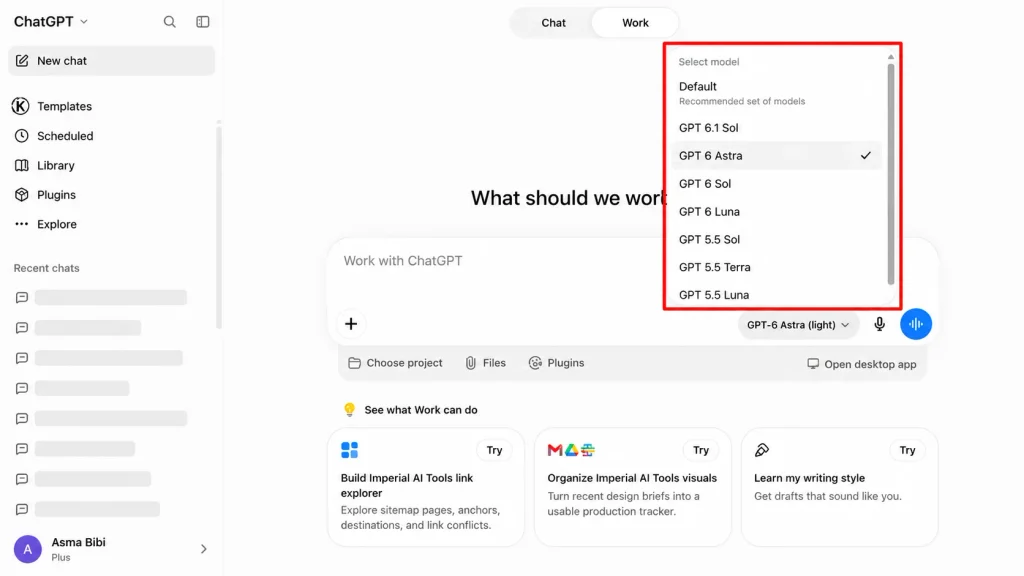
Since October 7, 2026, GPT-6 is ChatGPT’s default. In the model menu, “GPT-6” replaces the old “Latest” option, and you choose how much ChatGPT thinks. The names GPT-6 Sol, Luna and Astra describe the models behind each option.
| Option | Use it for | Where you will see it |
|---|---|---|
| Instant | Quick everyday answers, rewrites, simple lookups | All plans |
| Think button | A harder question when you are on Free or Go | Free and Go |
| Medium | Planning, studying, most work tasks | Plus and higher |
| High | Debugging, multi-step analysis, careful writing | Plus and higher |
| Extra High | The deepest thinking GPT-6 offers | Pro, Business, Enterprise |
| Pro | The hardest problems and longest workflows | Pro, Business, Enterprise (limits apply) |
Which ChatGPT model is best?
There is no single best option. Start with Instant. If the answer feels shallow, move up to Medium, then High. Save Extra High and Pro for jobs where a wrong answer is costly. Two things catch people out:
- On Plus and Pro, Instant no longer switches to a higher thinking level by itself. Typing “think harder” in your prompt will not switch it either, so pick the level yourself.
- If you hit a Thinking limit, ChatGPT may carry on with a different available model. The model menu shows when your allowance resets.
What about GPT-6.1? GPT-6.1 Sol is a newer model, but OpenAI released it only inside ChatGPT Work and Codex (September 29, 2026), starting with Pro and expanding to Plus, Business, Enterprise and Edu. It is not in the regular chat model menu, which runs on GPT-6. OpenAI says the Work and Codex models are separate from the ones in Chat. If you use Work or Codex for coding or longer tasks, you may see GPT-6.1 Sol there.
If coding is your main use, see how it compares to grok for coding.
How to Use ChatGPT’s Intelligent UI (Interactive Answers)
Intelligent UI arrived with GPT-6. ChatGPT can now combine text, visuals and interactive elements when they help: side-by-side comparisons, diagrams, and small tools you use right inside the chat, such as calculators, bill splitters and games. It picks the format on its own and still gives a plain text answer when that works best.
It can also start answering while it keeps thinking, then add more detail without another prompt. You do not need a special prompt, but these help:
- “Compare these two laptops side by side for a student on a budget.”
- “Make a bill splitter for four friends, with one person who ate less.”
- “Show me how a mortgage payment is split between interest and principal, as a diagram.”
Intelligent UI works from Instant through Extra High, not at Pro effort. Older versions of the macOS and Windows desktop apps do not support it, so use ChatGPT on the web or update the app. To see fewer visuals, open Settings on the web and turn off “Layout and visuals”.
ChatGPT Prompts for Beginners: The Formula and 12 Examples
Writing better prompts is called prompt engineering. It sounds technical, but it is just clear instructions. A prompt is just the message you send. A good one tells ChatGPT who to be, what to do and how to do it. Here is a formula you can reuse forever.
The Prompt Formula
This ChatGPT guide uses one formula for every prompt below, so you can reuse it anywhere. Use it like a checklist. You do not need all six parts every time. Role and task are the minimum. If the answer is too generic, add context. If it is too long, add format and constraints. Copy the example below, swap in your own details, and send it.
Role + Task + Context + Format + Tone + Constraints
Example: “Act as a career coach (role). Write a resume summary (task) for a nurse with five years of experience (context). Use three short sentences (format). Keep it confident but warm (tone). Avoid buzzwords (constraint).”
How to Write Better Prompts (With 3 Examples)
The secret to a great answer is a clear prompt. Be specific, give context and say the format you want. Here are three before-and-after examples you can copy:
- Weak: “Write an email.”
Better: “Write a short, friendly email to a client to reschedule our Monday call to Wednesday at 2 PM. Keep it under 80 words.” - Weak: “Give me blog ideas.”
Better: “Give me 10 blog title ideas about home coffee brewing for total beginners. Make them clear and clickable, not clickbait.” - Weak: “Explain this topic.”
Better: “Explain how compound interest works to a 15-year-old, using one simple real-life example and no jargon.”
Every good prompt has a role, a task, context and a format.
How to Edit, Regenerate and Refine ChatGPT Answers
Not happy with an answer? Click the regenerate (circular arrow) button, or edit your message and send it again.
Bad Prompt vs Good Prompt Examples
- Bad: “Write about marketing.”
- Good: “Act as a digital marketing expert. Write five simple tips to help a small bakery get more local customers on Instagram. Use short bullets and a friendly tone.”
The good prompt wins because it sets a role, a clear task, real context, a format and a tone.
Best ChatGPT Prompts by Use Case
Copy these starters and swap in your own details.
- Resume: “Turn these notes into three strong bullet points for a sales job.”
- Study guide: “Create a study guide with key points, simple definitions and five quiz questions.”
- Flashcards: “Make flashcards from these notes. Ask me the ones I get wrong again later.”
- Lesson plan: “Build a 45-minute lesson plan on fractions for grade five, with an activity.” For teacher-focused lesson planning and classroom materials, you can also try teachquill ai.
- Business plan: “Outline a one-page plan for a mobile car wash, with costs and target customers.”
- Meeting notes: “Turn this recording into structured notes and a follow-up email draft.” (Upload the audio first, see below.)
- Self-improvement: “Give me a 30-day plan to build a daily reading habit.”
- Workout plan: “Build me a four-week beginner strength plan with three sessions a week.” For ongoing training adjustments rather than a one-off plan, Dr. Muscle’s automated workout planning offers progressive overload and performance-based recommendations, and Fitbod’s AI-generated workout plans personalize sessions to your goals, equipment and recovery.
- HTML: “Write HTML and CSS for a simple contact form with name, email and message.”
- Rewrite: “Rewrite this paragraph to be clearer and friendlier, same meaning.”
- Photo prompt: “Describe what is in this photo, then suggest a caption.”
- Presentation: “Turn these notes into a five-slide outline, three bullets per slide.”
7 Steps to Get Better Answers From ChatGPT
A token is a small chunk of text, roughly three-quarters of a word, which is how AI tools measure size.
Clear instructions beat clever tricks.
- Start with a clear goal. Say exactly what you want, like “write a polite reminder email to a client.”
- Give context. Add who it is for, the situation, and any facts to include.
- Tell it the format. Ask for a list, a table, an email, or five bullets.
- Set the tone. Friendly, formal, funny, or simple. ChatGPT will match it.
- Add constraints. Set a word count, a reading level, or things to avoid.
- Ask follow-up questions. Tell it to ask you anything unclear before writing.
- Verify important answers. Double-check facts, numbers, and advice that matter.
You can improve any reply with a follow-up like “make it shorter” or “add an example.”
5 Advanced ChatGPT Tips to Get Better Results
- The Clone: turn ChatGPT into an assistant that knows your context. Write a short profile of your goals, style and preferences in custom instructions, turn on memory, and use Projects to keep different areas of work apart. A Project can use default memory or project-only memory, so work chats do not leak into personal ones.
- The Swarm: combine tools instead of using plain chat. ChatGPT Work handles longer jobs such as research, finished documents, spreadsheets and presentations while you follow progress and approve important actions. Deep research searches many sources and returns a cited report.
- Devil’s Advocate: ask ChatGPT to argue against your idea instead of agreeing, so you stress-test your thinking and catch blind spots before you commit.
- Neural Link: use ChatGPT to learn, not just to collect answers. Ask it to quiz you, question your reasoning or have you explain a concept back. Study mode, interactive quizzes and flashcards are built in, so learning sticks.
- Executive Coach: treat ChatGPT as a sounding board under pressure. Use it to reflect your thinking back to you during tough decisions, the way a coach would, so you respond with clarity instead of reacting.
How to Upload Files, Photos, Excel Sheets and Audio to ChatGPT
How to Send a Photo in ChatGPT
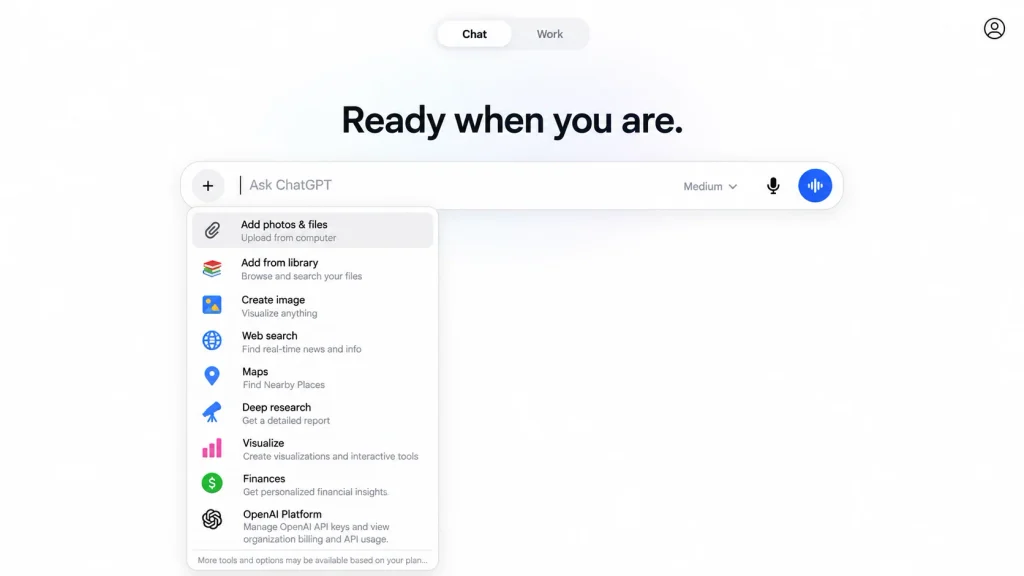
Tap the plus or paperclip icon near the message box, then choose your image or take a new photo in the app. Once it uploads, ask your question, such as “what does this label say?” or “explain this chart”. On iPhone, the camera’s Scan option can combine several pages into one PDF for you.
How to Upload Excel to ChatGPT
Click the same icon and pick your .xlsx or .csv file, then say what you need, like “sum the sales column” or “show the top ten rows”. On supported plans, ChatGPT can run calculations and build simple charts from your sheet. If your main focus is spreadsheets, GPTExcel for AI-powered Excel analysis and formulas is another option, and ChatGPT also has add-ins for Excel and Google Sheets.
How to Analyse Data and Make Charts in ChatGPT
This feature is often called data analysis. ChatGPT runs code behind the scenes to work out your numbers, so it is more reliable than guessing.
How to Upload Audio to ChatGPT
Attach a supported audio file to a conversation and say what you want: a transcript, a summary, or answers about what was said. It works well for turning a meeting, interview or lecture into structured notes. Audio uploads are on paid plans, transcripts can contain errors, and results vary by language.
Best results: record in a quiet room, keep one person speaking at a time, and upload the file as soon as the call ends. Then ask for “a summary, a list of decisions, and the next steps with owners.”
ChatGPT File Upload Limits
Limits change, so treat these as a guide and check OpenAI’s file uploads faq for the current rules.
- A hard limit of 512 MB per file.
- Text and document files are capped at 2 million tokens each. This does not apply to spreadsheets.
- Spreadsheets and CSV files should stay under about 50 MB, depending on row size.
- Images can be up to 20 MB each.
- Rate limit: up to 80 files every 3 hours, and Free users get 3 file uploads per day. OpenAI may lower these at peak times.
- Storage caps of 25 GB per user apply across chats, Projects and custom GPT knowledge.
- Files per Project: 5 on Free, 25 on Go and Plus, and 40 on Pro, Business, Enterprise and Edu.
A token is a small chunk of text, roughly three-quarters of a word, which is how AI tools measure size. Two more tips: if you paste more than 10,000 characters, ChatGPT turns the paste into an attachment, and for most documents it reads the text and ignores images embedded in the file.
What Is ChatGPT Used For? Examples for 7 Types of Users
Pick your role below and copy the prompt.
| User type | What to use it for | Try this prompt |
|---|---|---|
| Students | Summaries, flashcards, quizzes, explanations | “Explain photosynthesis simply and give me five flashcards.” (For notes-based study tools, see NotebookLM.) |
| Writers | Outlines, rewrites, tone, editing | “Outline a post about slow travel, then improve my intro.” |
| Marketers and SEO | Keyword ideas, briefs, FAQs, meta descriptions | “Write ten FAQs and a meta description for ‘home coffee setup’.” |
| Business owners | Emails, SOPs, replies, plans | “Write a friendly reply to a customer asking for a refund.” |
| Developers | Code explanation, debugging, small apps | “Explain this error and suggest a fix for my Python script.” |
| Teachers | Lesson plans, quizzes, rubrics | “Create a ten-question quiz and a rubric on the water cycle.” |
| Job seekers | Tailoring a resume, practicing interviews | “Tailor this resume to the job post below and list three gaps I should address.” |
One caution stands out: students should use ChatGPT to understand a topic, not to hand in its answers as their own.
ChatGPT vs Gemini, Claude, Perplexity and Grok
Every ChatGPT guide should tell you when not to use ChatGPT, so here is the honest comparison. ChatGPT is the most popular AI chatbot, but it is not the only one. Each rival does something especially well, and the smart move is to match the tool to the task. The model names below are what each company listed in its own documentation or release notes as of October 2026.
| Chatbot | Latest model we checked | Pick it when you want |
|---|---|---|
| Gemini | Gemini 4 Argon, generally available in the Gemini API since October 13, 2026 (1M-token context, text, image, video, audio and PDF input) | An assistant that fits into Google apps like Docs, Gmail and Search. |
| Claude | Claude Fable 5.1, Opus 5.5, Sonnet 5.5 and Haiku 5.5 (all four list a 1M-token context window) | Long documents, careful writing and long-running coding work. |
| Perplexity | Search-first assistant that shows its sources | Fast web research with clear source links. |
| Grok | Grok 4.7, released September 21, 2026 (500K-token context) | Real-time posts and news from X. xAI’s developer docs list an X Search tool. |
| DeepSeek | DeepSeek-V4 Pro and Flash, a preview released April 24, 2026 with 1M-token context and open weights under the MIT license | A model you can download and run on your own hardware. |
| Microsoft Copilot | Redesigned on September 25, 2026 around Home, Code and Autopilot, rolling out through Microsoft’s Frontier program | Help inside Word, Excel, PowerPoint, Outlook and Teams. |
Context figures for the rivals come from their API documentation. ChatGPT’s in-app limits depend on your plan. For most everyday tasks, ChatGPT is the safest first choice. Try the others when a job calls for their specialty.
If you are still deciding which AI assistant suits your needs, start with our detailed claude vs chatgpt comparison, which breaks down how the two leading chatbots differ in writing quality, reasoning, and everyday usability. If your work leans toward research and productivity, our perplexity vs gemini comparison shows how each tool handles sourced answers, search, and workflow support. Readers who want a broader view of the market can explore our list of chatgpt alternatives, and those looking for no-cost options will find our roundup of free grok alternatives especially useful.
Is ChatGPT Safe?
ChatGPT is safe for most everyday tasks, but a little caution goes a long way.
Does ChatGPT store my conversations?
Yes. ChatGPT saves your chat history until you delete it, and your content may be used to improve OpenAI’s models unless you opt out. Here is how to take control:
- Open Settings and go to Data controls to turn off model training.
- Delete single chats, or clear everything, to remove them. OpenAI says deleted chats leave its systems within 30 days, unless it must keep them for security or legal reasons.
- Use a temporary chat for private questions. A plain temporary chat uses no memory, custom instructions or plugins and creates no new memories. You can also choose a personalized temporary chat, which can use them but still stays out of your history unless you save it.
- Open Privacy Center from the Help menu to see your privacy, memory and connected-app settings in one place.
Accuracy and Hallucinations
ChatGPT can “hallucinate”, which means it can state wrong facts with total confidence. Verify names, numbers, dates and advice before you rely on them. A hallucination is when ChatGPT gives a confident answer that is wrong or made up. It happens most with exact numbers, quotes, legal or medical details and recent events. To lower the risk, do three things. Turn on search for current facts. Ask “What are your sources?” and open the links. Then check anything important on an official site before you act on it.
Copyright and AI-Written Text
Rules about who owns AI-written text are still settling and vary by country. If it matters, add your own edits and check any workplace or school policy on AI use. If you need to check whether text looks AI-written, zerogpt can screen it and highlight sentences for review, but free detectors misjudge human writing too, as our look at whether zerogpt can be trusted explains.
Things You Should Not Put Into ChatGPT
- Passwords, PINs or security codes.
- Private business or client data.
- Medical, legal or financial documents, unless handled with care and permission.
- Sensitive personal information about you or others.
ChatGPT Not Working? 9 Common Problems and Fixes
If ChatGPT is not working, work through this list from top to bottom.
- ChatGPT not responding: refresh the page, check your internet and look at the OpenAI status page for outages.
- ChatGPT internal server error: usually temporary. Wait a minute, reload or start a new chat.
- ChatGPT will not let me type: the box can lock while a reply is generating. Wait for it to finish, or reload.
- Cannot send message in ChatGPT: you may have hit a usage limit or lost connection. Wait for the reset, switch network or try later.
- ChatGPT forgot password: click “Forgot password” on the login screen and follow the reset email.
- GPT-6 not showing up: GPT-6 is rolling out to eligible accounts. Look for “GPT-6” in the model menu (it is not labeled Sol), update your app and check your plan.
- Intelligent UI not appearing: update your app. Older macOS and Windows desktop apps do not support it, so try the web. It does not appear at Pro effort.
- A model is unavailable: you have reached that model’s allowance. ChatGPT shows the reset time, or you can switch to another option.
- Upload limit reached: the rolling limit (80 files per 3 hours, or 3 per day on Free) is separate from the 25 GB storage cap, and failed uploads can count toward it. Wait for the reset, upload fewer or smaller files, or delete old files.
ChatGPT Guide Summary: What to Do Next
ChatGPT works best when you give it a clear goal, add real context, pick the right thinking level and check important answers before you trust them. Start on the free plan, learn the simple prompt formula, and add files, voice, Projects and Intelligent UI as you get more comfortable. Models and limits change often.
ChatGPT Guide FAQs
How do I make ChatGPT think harder?
On Plus and higher, open the model menu and choose Medium, High or Extra High. Pro plans also have a Pro option for the hardest tasks. On Free and Go, use the Think button. Typing “think harder” in your prompt will not change the level, and Instant no longer switches automatically on Plus and Pro.
How do I turn off ChatGPT’s interactive answers?
On the web, open Settings and turn off “Layout and visuals”. This reduces visuals but does not switch ChatGPT to a text-only mode, so some visual elements may still appear. Choosing Pro effort also avoids Intelligent UI.
Can ChatGPT make flashcards and quizzes?
Yes. Ask for flashcards on a topic, or upload your notes and ask ChatGPT to turn them into flashcards. Tap a card to flip it, mark whether you knew it, and shuffle to practice in a different order. Flashcards are saved to your Library. You can also ask it to quiz you and answer the questions directly in the chat.
How to improve brand visibility in ChatGPT?
Publish clear, original content that answers common questions in your niche. Use plain headings, add tables and FAQs, cite trustworthy sources and keep pages current. Then test relevant prompts in ChatGPT and improve the pages where your brand does not appear.
How to run a game with ChatGPT code?
Ask ChatGPT to write the game code, for example “make a simple browser game in HTML, CSS and JavaScript”. Copy the code into a file, save it with the right ending like .html, then open it in your browser to play. For Python games, save the file and run it with Python on your computer.