
Finding the best moments in a long podcast, interview, or webinar by hand takes forever. You scrub through an hour of footage looking for one 30-second gem, then repeat that for every clip you want. Learning how to use opus clip removes most of that grind. OpusClip automates the first editing pass with AI. It finds potentially engaging moments, converts horizontal footage into vertical clips, adds captions, tracks the active speaker, and assigns a Virality Score to each clip. It also prepares your content for several platforms at once.
This guide walks through the complete workflow, not a general product review. By the end, you will know how to go from one long video to ten publish-ready Shorts, Reels, or TikToks.
What Is OpusClip and What Does It Do?

Opus Clip is an AI video clipping tool built for repurposing long-form recordings into shorter social videos. It sits alongside other AI video generation tools, but its focus is clipping rather than creating footage from scratch. You give it a long video, and it returns a set of short clips ready for vertical platforms.
The AI analyzes several signals to decide what to cut. It looks at the spoken words and topics, visual activity, speaker changes, sentiment and context, potential hooks, and whether a moment stands on its own. It works especially well for podcasts, interviews, educational videos, commentary, webinars, product demonstrations, livestream recordings, and talking-head videos. Repurposing long video? OpusClip is one of our free tools for marketers.
One honest condition: AI-generated clips still need human review. Check every clip for context, factual accuracy, caption errors, and brand suitability before you post it. The AI should support your editorial judgment, not replace it.
I pop it in Opus Clip. It shows me through someone else’s eyes or through this algorithm. What are the valuable clips here? I take those. I continue to edit them the way that I like them and I put them out.
What You Need Before Using Opus Clip
Create an account or sign in
Head to the official OpusClip website and create a free account. If you already have one, the OpusClip login takes you straight to your project dashboard. The Opus Clip sign in process supports common account methods, so you can be inside the tool in under a minute.
Prepare your source video
Better source footage gives the AI more useful moments to find. For the strongest results, use:
- Clear speech and clean audio
- Adequate lighting
- Visible speakers
- Distinct topics or segments
- High-resolution footage
- Content you own or have permission to edit
If speech is buried under background music, room noise or echo, LALAL.AI voice cleanup can prepare a cleaner source track before you upload the video to OpusClip.
Choose an input method
OpusClip accepts both uploaded files and hosted video links. Currently supported options include:
- Local video file
- YouTube
- Google Drive
- Vimeo
- Zoom
- Twitch
- Riverside
- Loom
- StreamYard
- Public MP4 URLs
Supported sources change over time, so confirm before you submit a hosted video.
How to Use Opus Clip Step by Step

Here is the full workflow from account creation to a finished clip. Each step is independent, so you can jump back to any stage as you refine your output.
Step 1: Create Your OpusClip Account
Open the official OpusClip website and select the sign-up option. Register with an available account method, complete the initial setup, and open your project dashboard. Beginners can test the whole workflow on the Opus Clip free plan before paying anything.
Step 2: Upload a Video or Paste Its Link
You have two ways to bring a video in. Paste a public or unlisted supported video URL into the link field, or upload a compatible video file from your device.
Do not submit private or restricted links, since OpusClip cannot access them. Once you add the source, the tool can create clips automatically from a video without any manual timeline work on your part.
Step 3: Select the Clipping Mode
OpusClip offers a few ways to decide what gets clipped. Availability can vary by plan, so treat these as options rather than guarantees on every tier.
- AI-selected highlights
- Topic- or keyword-directed clipping
- Specific timeframe selection
- ClipAnything or prompt-based selection
- Custom clip length
Automatic selection is useful when you just want the AI’s best guesses fast. A specific prompt produces better results when you know exactly what you are looking for. Here is an example prompt you can paste directly:
Find self-contained moments where the speaker gives practical video marketing advice. Prioritize strong opening statements and clips that require no additional context.
Step 4: Choose Clip Length and Output Settings
Your target platform decides your clip length, aspect ratio, and pacing. Match the format to where the clip will live. The table below maps common destinations to the right format and editing priority.
| Destination | Recommended format | Editing priority |
|---|---|---|
| TikTok | 9:16 | Fast opening and visual movement |
| Instagram Reels | 9:16 | Clean presentation and shareability |
| YouTube Shorts | 9:16 | Immediate context and audience retention |
| Square social posts | 1:1 | Central framing and readable captions |
| Standard YouTube | 16:9 | Wider composition and longer context |
Platform rules can change, so verify current length and format limits before you post.
Step 5: Generate the AI Clips
Start processing, and OpusClip analyzes the source and presents multiple clip suggestions. For each suggested clip, you may see:
- Clip title
- Extracted segment
- Duration
- Transcript
- Virality Score
- Score explanation
- Preview
- Editing controls
Step 6: Review and Select the Best Clips
This is where knowing how to make clips that actually land matters. Run each suggestion through a quick checklist before you keep it:
- Does the opening create immediate curiosity?
- Can the clip make sense without the original video?
- Is the main point complete?
- Is there unnecessary silence?
- Are any statements taken out of context?
- Does the ending feel intentional?
- Is the speaker framed correctly?
Step 7: Edit the Clip
Open a clip in the short-form video editor to tighten it up. From here you can:
- Trim or extend the beginning and ending
- Remove unwanted sentences
- Rearrange scenes where appropriate
- Correct framing
- Track the active speaker
- Add B-roll
- Add text overlays
- Remove filler words or long silences
- Include an intro, outro, or call to action
- Add music where appropriate
Resist the urge to overload the clip. Too much animation, too many emojis, or wall-to-wall stock footage makes a clip feel generic and cheap.
Step 8: Edit OpusClip Captions
AI captions are fast but rarely perfect, so review them carefully. Pay close attention to:
- Names
- Technical terminology
- Punctuation
- Capitalization
- Numbers
- Brand names
- Caption timing
- Line length
- Text placement
Use high-contrast text so captions stay readable, and check the final result on a mobile-sized preview before you move on.
Step 9: Add Branding
Consistent branding makes a series of clips recognizable. OpusClip lets you set:
- Logo placement
- Brand colors
- Custom fonts
- Caption styles
- Reusable brand templates
- Intro and outro cards
Keep your logo away from areas covered by platform buttons and captions, or it will get hidden behind the interface.
Step 10: Export, Download, or Publish
Once a clip is ready, choose how to finish it. Your options include:
- Download the clip
- Post directly to a connected social account
- Schedule publication
- Export for further editing
- Prepare versions for multiple platforms
Depending on your plan, you can also export projects for editing in Adobe Premiere Pro or DaVinci Resolve.
How to Improve OpusClip Results

Start with suitable source material
Clear, structured recordings give the AI more useful moments to identify. A well-organized interview beats a rambling stream every time.
Tell the AI what to find
Specific prompts sharpen the output. Try any of these directly:
Find surprising claims that can work as standalone clips.
Find practical tips with a clear problem and solution.
Find emotional stories with a strong opening sentence.
Strengthen the first few seconds
Cut greetings, long introductions, and any sentence that only makes sense if you heard the earlier context. The first three seconds decide whether someone keeps watching.
Review AI reframing manually
Automatic reframing is good, not flawless. Confirm that faces, products, demonstrations, and important screen elements stay visible in the vertical crop.
Create platform-specific versions
One size does not fit every feed. Adjust pacing, captions, framing, descriptions, and calls to action for each destination.
Test instead of trusting the Virality Score alone
The score is a starting point. Track real numbers to learn what works: average view duration, completion rate, replays, shares, saves, comments, profile visits, and link clicks.
Opus Clip Pricing: Which Plan Do You Need?
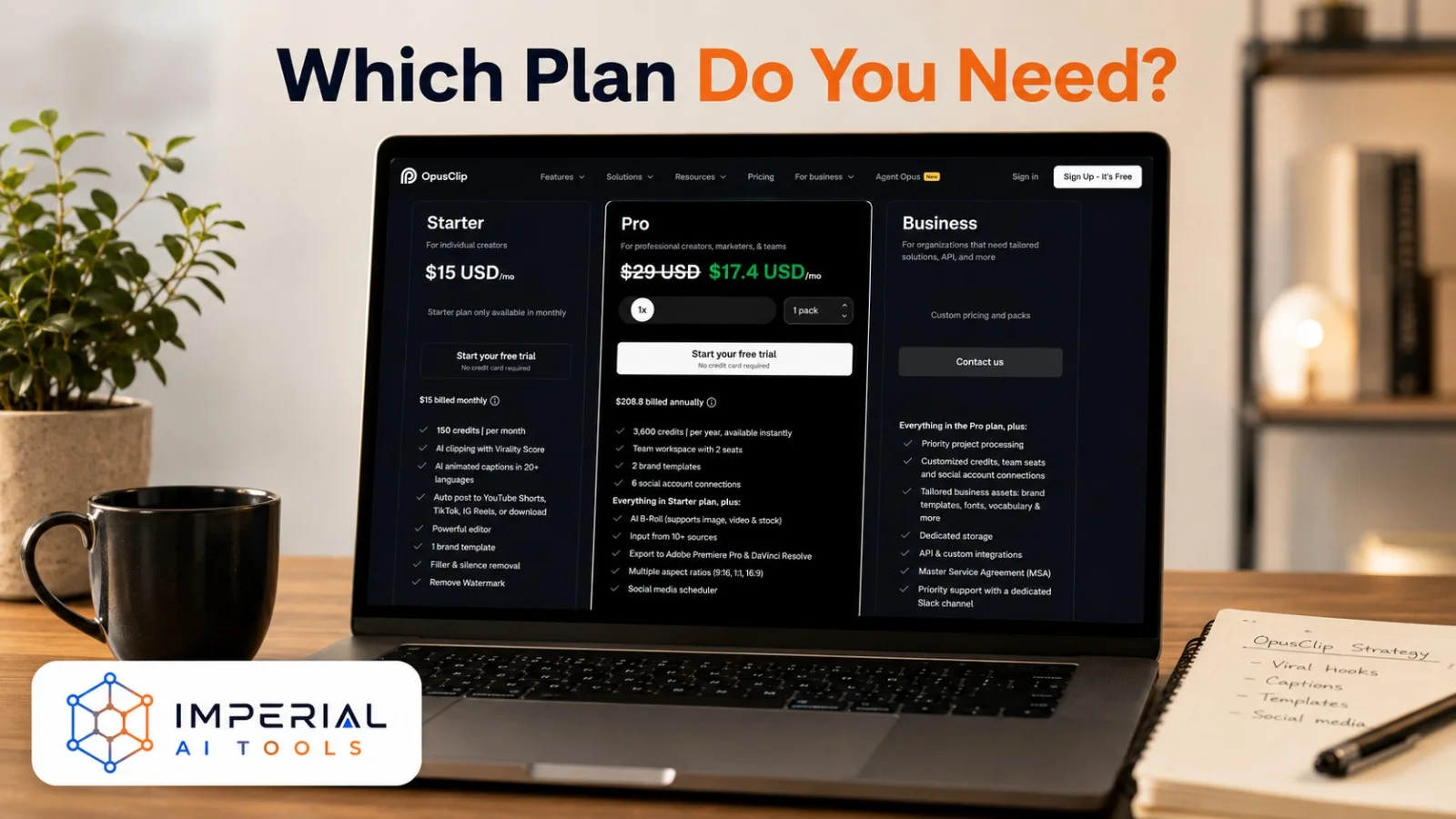
Pricing was checked on July 22, 2026, but plans change, so verify the official OpusClip pricing page before you buy. The table below lists the current tiers and who each one suits.
| Plan | Current listed price | Credits | Suitable for |
|---|---|---|---|
| Free | $0 | 60 per month | Testing basic AI clipping |
| Starter | $15 per month | 150 per month | Individual creators |
| Pro monthly | $29 per month | Depends on selected pack | Professional creators and teams |
| Pro annual | $174 per year | 3,600 per year | Regular high-volume creators |
| Business | Custom | Custom | Agencies and organizations |
The differences between tiers matter more than the headline price:
- Free exports carry a watermark.
- Free projects stop being exportable after three days.
- Starter removes the watermark and adds editing features.
- Pro adds multiple aspect ratios, AI B-roll, scheduling, team features, additional input sources, and professional editor exports.
- Business offers customized credits, integrations, security, and support.
So, is Opus Clip free? Yes, there is a genuine free plan, but it comes with watermark, editing, and export limitations. Opus Clip does not offer a traditional Opus Clip free trial of its paid features, so check the official pricing page for whatever trial or discount option is displayed at the time you sign up.
Opus Clip Best Practices and Mistakes to Avoid
The table below pairs each best practice with the mistake it prevents, so you can scan it before every publish.
| Best practice | Mistake to avoid |
|---|---|
| Choose a self-contained moment | Starting halfway through an unexplained discussion |
| Correct every caption error | Publishing the raw AI transcript |
| Check vertical framing | Allowing faces or products to be cropped |
| Create a strong opening | Keeping greetings and slow introductions |
| Review the complete clip | Trusting the Virality Score without watching |
| Match the platform | Uploading the identical version everywhere |
| Use licensed content | Clipping copyrighted material without permission |
| Add subtle branding | Covering the video with logos and overlays |
Remember that a high “viral” rating does not promise reach, engagement, or revenue. It only reflects the AI’s guess.
Common OpusClip Problems and Solutions
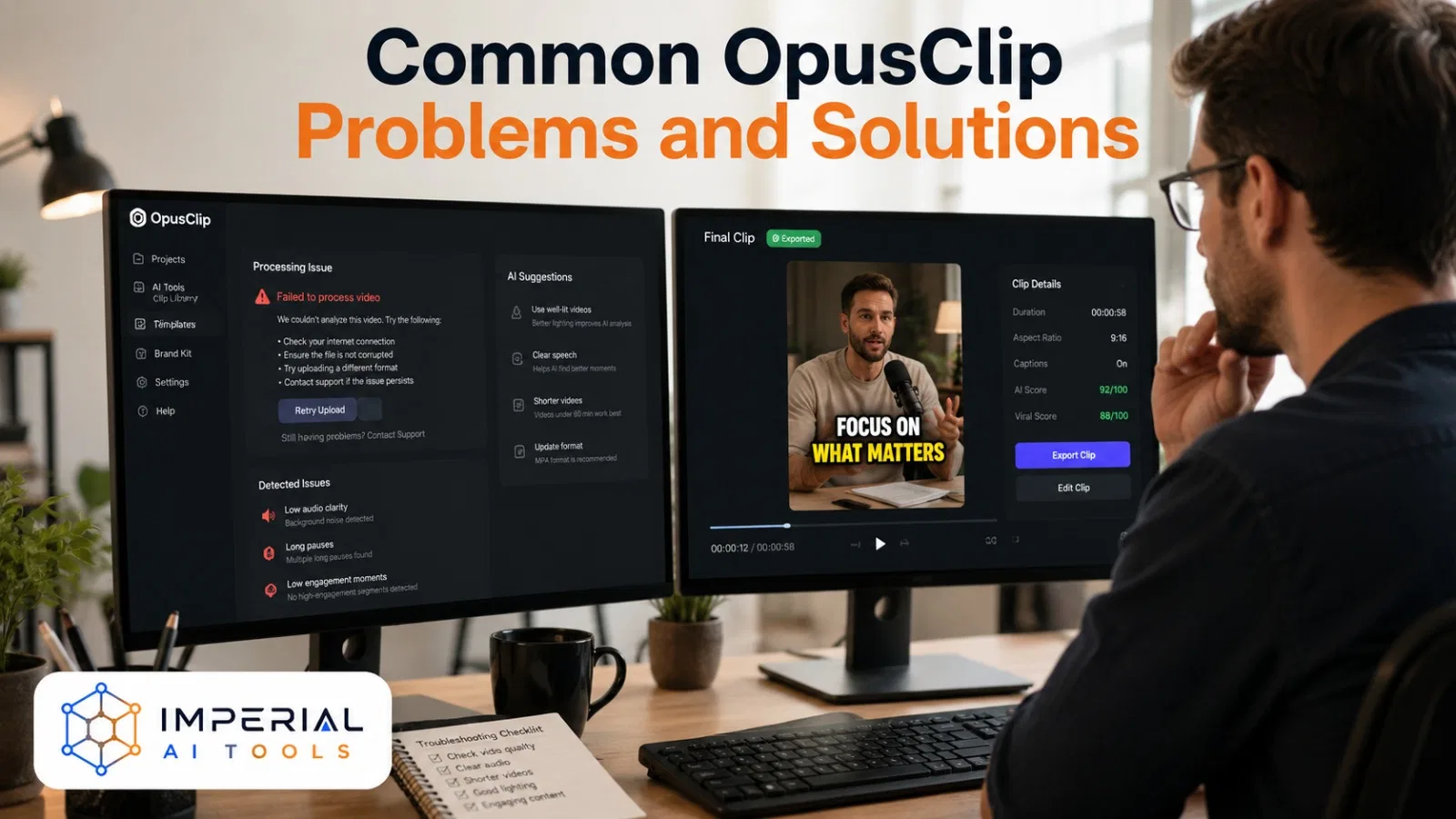
Most issues have a quick fix. This table pairs the common problems with what usually solves them.
| Problem | Possible solution |
|---|---|
| Video link will not import | Make it public or unlisted, or upload the local file |
| AI selects irrelevant segments | Give a specific prompt, topic, or timeframe |
| Captions contain errors | Correct the transcript manually |
| Speaker is cropped | Use manual reframing or subject tracking |
| Clip lacks context | Extend its opening or add a short text overlay |
| Export contains a watermark | Upgrade to a watermark-free plan |
| Output feels generic | Customize captions, pacing, branding, and B-roll |
| Processing fails | Check the source, file format, connection, and service status |
Wondering how to remove Opus Clip watermark? Use a paid plan that includes watermark-free export. Skip unofficial watermark removers, since they degrade quality and can raise licensing problems.
When an Opus Clip Alternative May Be Better
OpusClip suits automated repurposing, but it does not fit every workflow. An Opus Clip alternative may serve you better when you need more manual timeline control, different credit limits, a lower-cost workflow, specialized podcast editing, advanced team collaboration, watermark-free free exports, or a mobile-first editor.
OpusClip is convenient for automated repurposing, but its credit system and free-plan restrictions may not suit every creator. Our roundup of the best Opus Clip alternatives compares CapCut, Descript, Pictory and more so you can find an editor that better matches your budget and workflow
If you need transcript-based editing or a different AI video to Shorts converter, it is worth lining up two or three tools side by side before you commit to a paid plan. Our Synthesia vs HeyGen comparison is a good place to weigh two popular AI video options, and you can also check the Canva review if you want a broader all-in-one editor.
Conclusion
Learning how to use Opus Clip is straightforward: upload a long video, guide the AI, review its suggested moments, correct the framing and captions, and export or publish the strongest clips. The platform shortens the first editing pass, but the AI should support your judgment, not replace it.
Always confirm that each clip is accurate, understandable without missing context, properly licensed, and suited to its destination platform. Start with the free plan to test the workflow, then compare its limits and paid features against your expected publishing volume before you upgrade. For more tutorials like this one, browse our AI video guides.
Frequently Asked Questions
Yes, up to a point. OpusClip can import, clip, caption, schedule, and publish content, which covers much of a YouTube Shorts pipeline. Human quality control is still necessary to catch context errors, caption mistakes, and clips that misrepresent the source.
No. The free plan applies a watermark to every export. To get watermark-free clips, upgrade to a paid plan such as Starter or Pro, which include watermark-free exports. Avoid third-party watermark removers, since they hurt quality and raise licensing risks.
Yes, using the software is legal. The catch is ownership. You must own or have permission to edit and republish the underlying video, audio, music, images, and any other assets in your clip. Clipping copyrighted material without permission is the real legal risk, not the tool itself.
OpusClip runs in the browser, and mobile support can change over time. Check current device and browser support on the official site rather than assuming a full mobile editing experience. For heavy editing, a desktop browser remains the safer choice.